

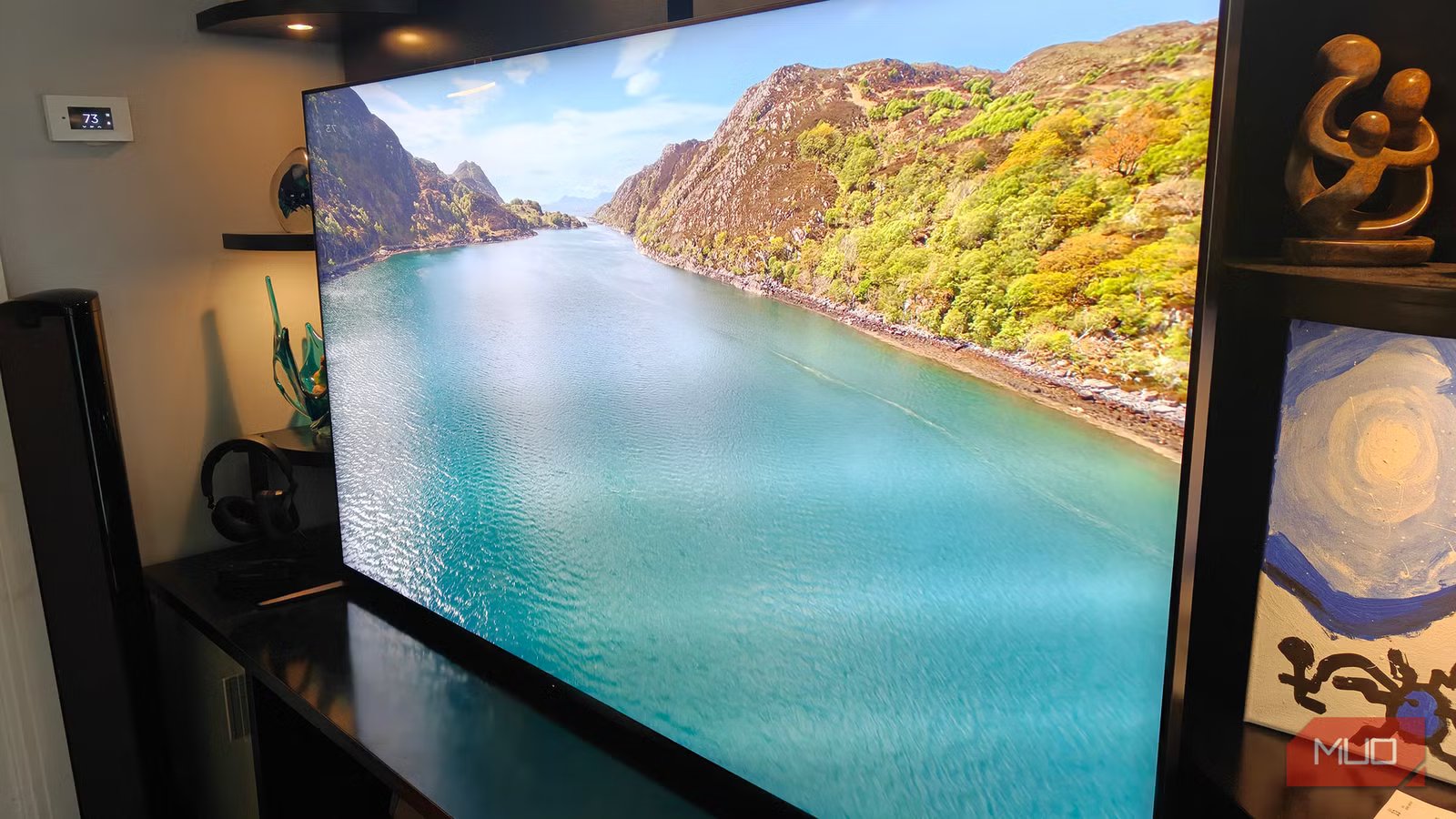
There’s little, if any, debate: OLED TVs offer the best picture quality you can get for a TV at home, with dark, deep blacks and vibrant colors. While some models perform better than others, and there are new TV technologies giving OLED a run for its money, like microLED TVs, OLED is still a fantastic option. But there has historically been one big problem with OLED TVs: burn-in.
If you leave a channel on too long, burn-in is when a part of the image that remains static starts to “burn in” to the screen. It’s different from image retention, where an image remains on screen long after it has disappeared, but then eventually goes away. Burn-in is more severe, a permanent etching of that image on your screen. This means it’s faintly visible permanently, most noticeable if you’re watching something where there’s black in the portion where the burn-in has occurred. It can happen if you pause the TV and forget it or with channels that have a network logo on the corner, like CP24. Thankfully, however, burn-in is less of an issue with the latest OLED TVs that are employing various technologies to combat it.
Related
I thought OLED burn-in was a myth — boy, was I wrong
I ignored the burn-in warnings, and now my display has the scars to prove it.
Screen savers
Just like your computer
Most TVs come with built-in screensaver features that display a moving image, like a painting or artwork, if the TV is left on and nothing is being actively watched. Maybe you hit pause to hop on a call or tend to a chore that ended up taking longer than you expected. Or perhaps you fell asleep with the TV on the guide screen. It’s designed to help prevent burn-in of any static image that may be left on the screen for an extended period of time.
Every OLED TV manufacturer, not to mention LED TVs as well, includes this feature. With most, the screen saver is displayed if the TV detects a static image or no input signal for more than two minutes. You can usually enter Settings to customize the image, just like you can for your laptop, including using your own photos or even, with the latest TVs, generating a custom image via AI.
Pixel and panel refreshing features
Resets pixels to keep things fresh
The top OLED TV makers all include technology in their latest displays specifically to help combat OLED burn-in. There’s technology that can reset or refresh pixels to prevent the issue. LG calls this Pixel Refresher or Clear Panel Noise in its OLED TVs, while Sony calls it Panel Refresh and Samsung Pixel Refresh. This process requires manually activating it and waiting a few minutes for it to run. So, it’s not technically one you won’t notice, but it’s one you might not know about. Some brands like LG have this feature run automatically whenever the TV is off. While it’s worth activating if you think the TV needs it, you should refrain from manually running this maintenance feature more than once a year: it’s a preventative measure that can degrade the panel with overuse.
LG TVs also include Logo Luminance Adjustment, designed to detect static logos and reduce brightness in certain areas of the screen. This is available in Samsung TVs as well, called Adjust Logo Brightness. You can also leverage the overall adjustable brightness of any OLED TV, turning brightness down to help reduce instances of image retention and eventual burn-in when you don’t need the most vibrant images. None of these features are easy ways to fix screen burn-in, but they can work as preventative measures so it doesn’t happen in the first place.
Pixel or screen shifting
Move those pixels around
Credit: Christine Persaud / MUO
There’s another technology that LG calls Screen Shift and Sony and Samsung call Pixel Shift. It shifts the screen ever so slightly — not enough for you to even notice — so that burn-in doesn’t happen. The feature can potentially double the lifespan of your OLED TV, running automatically after a certain duration of time, moving the pixels at regular intervals. You may have to go into settings and enable it first.
For those with keen vision, it might look like the screen is moving, and you might notice that the edges of the screen move to outside its borders. You can turn Pixel Shift off to prevent this if it impedes your viewing experience. But if you know you’ll be watching something with static images for long periods of time, like news, or playing games with static images, it’s best to turn this feature back on. More often than not, however, the slight impact that pixel shifting might have on the viewing experience is worth it versus the permanent damage that burn-in can cause.
Still take measured steps
Employ preventative habits
Image by HamlinCredit: Hamlin Rozario/MakeUseOf
While some might argue that OLED is no longer the king of displays, usurped by miniLED and microLED that offer a best of both worlds between OLED and LED, it’s still one of the best TV technologies around. Even though burn-in is less common nowadays with the latest OLED TVs, it is still possible, especially with channels that display things like news tickers and static logos. It is also possible if you watch movies with black bars on the top and bottom of the screen, or play video games or access apps with static content. Think a YouTuber with a static logo on their videos that you might be watching for hours, or the YouTube logo itself that always displays in the same spot.
Your best bet is to leverage the features noted above. If you like to keep the news on in the background while you work, make note to turn it off or change the channel every so often to help prevent burn-in. Reduce brightness when watching such content for extended periods. If you’re using your TV as a remote monitor, hide things like the taskbar and icons that remain static on screen the entire time you’re working. Most of all, turn the TV off when you’re not watching. Along with helping reduce your electricity usage and lengthening the lifespan of the TV, this will also help prevent OLED’s biggest problem, burn-in.
