

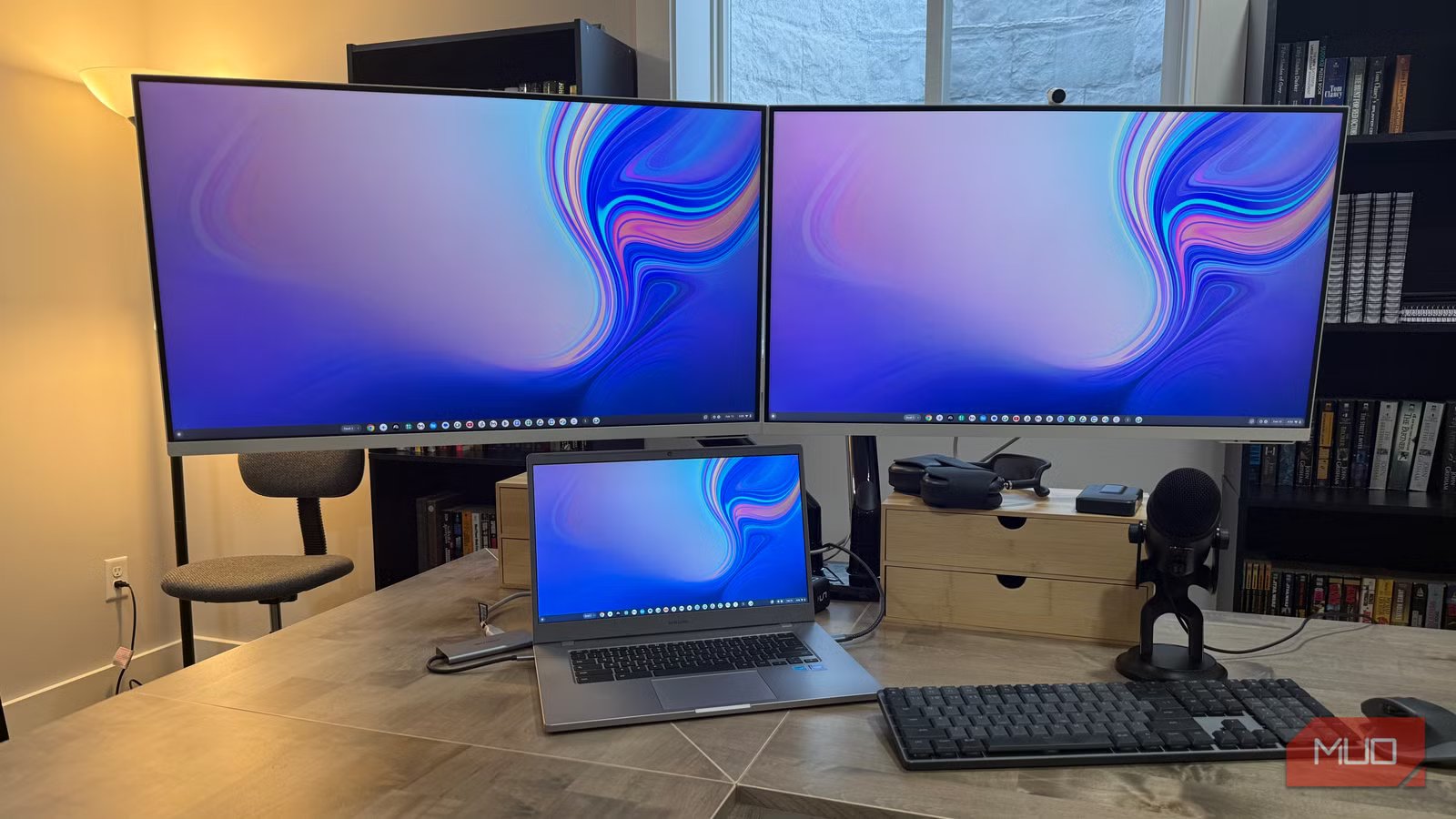
My basement office had a cable problem that stopped exactly at the desk’s edge. Everything above it looked intentional. Everything below was a disaster. It took going through several rounds of cable fixes throughout the house before I gave my desk itself the same systematic treatment.
These five tricks cover the scenarios that come up in almost every desk setup, from under the frame to the wall behind the monitor.
Adhesive cable clips keep the underside of your desk in check
Map your cable lanes before you stick anything down
The layout matters more than the clips themselves. Think about which cables you actually touch day-to-day: charging cables need to stay near the front edge, where you can reach them without crawling underneath, while power cords can live along the back since they’re basically permanent once plugged in. Data cables — HDMI, DisplayPort, Ethernet — run through the middle. That’s it. Once the logic is clear, placement becomes obvious.
VAMRONE Adhesive Cable Management Clips are well-suited for this. A 50-pack runs under $10. The adjustable design works on everything from thin USB cables to chunky power cords, and the 3M adhesive holds on wood, metal, and painted surfaces without issue. At the power strip where cables bunch up and get heavy, a couple of screwed-in clips instead of adhesive-only ones adds some peace of mind.
A zipper cable sleeve tidies the drop from desk to floor
Bundle the vertical run so it looks intentional, not accidental
Under-desk clips handle horizontal routing well, but they don’t solve what happens when cables need to travel down to the floor. Whether it’s a power strip sitting below the desk, a surge protector, or just excess cable length, that vertical drop tends to become its own tangle — individual cords hanging at different lengths, shifting every time the chair moves.
A JOTO zipper cable sleeve bundles all those loose drops into one clean run. Gather the cords, wrap the sleeve around them, and zip. It’s a small thing, but it changes how the whole desk reads. Two sleeves connect end-to-end for longer drops, and you can cut an opening anywhere along the sleeve when a cable needs to exit partway down. A four-pack runs $10–$13, which makes it easy to use in more than one spot. I have one behind my desk and another behind the TV stand.
Related
You don’t need multiple monitors — this is what you need
I use this instead of multiple monitors, and I’m much more productive.
A desk grommet turns a surface full of cables into one clean pass-through
One hole, every cable, no more mess on top of the desk
Credit: Jonathon Jachura / MUO
Even with the underside of a desk fully organized, the surface itself can still look chaotic. Laptops connected to external monitors, docks, adapters, and chargers generate cables that have to come up from below somehow — and without a dedicated spot for them, they pile up at the back edge and spread outward.
A 2-inch desk cable grommet installed in the back corner designates a single entry point for everything. Cables come up through it, connect where they need to, and the grommet keeps them from spreading. When not in use, the cover snaps shut and the hole disappears entirely. Installation takes about ten minutes with a hole saw bit on a drill. The practical upside is that unplugging the laptop to take it somewhere requires no untangling or rerouting — just unplug and go.
Cable raceways handle the runs you simply can’t hide
Wall-mounted devices need a clean path to power
Some cable problems don’t live at the desk at all. A Ring camera mounted in the garage, a baby monitor clipped above a crib, a router tucked high on a wall — all of these need power, and the outlet is usually nowhere near them. Running a cable openly along the wall without any covering looks unfinished at best.
D-Line Half Round Cord Hiders give those exposed runs a clean, finished appearance. The channels are paintable plastic, pre-backed with adhesive, and cuttable to whatever length the run requires. Once painted to match the wall, they blend in well enough that most people don’t notice them. For my garage Ring camera, I started the raceway behind a cabinet to hide where it begins, then ran it up the wall to the camera. D-Line also sells matching corner pieces for navigating angles — a clean straight run that hits a corner without the right accessory looks worse than no raceway at all.
Going in-wall gives a wall-mounted monitor a professional finish
Running cables through drywall is less intimidating than it sounds
Wall-mounting a monitor removes the stand, frees up desk surface, and puts the screen exactly where you want it. What tends to undercut the whole thing is HDMI and power cords dropping visibly down the wall and looping back to the desk — it makes a clean setup look unfinished.
A kit like the Legrand – OnQ In-Wall Cable Management Kit handles both the power and low-voltage side in one package. It comes with recessed wall boxes for both ends, a pre-wired power harness that avoids any hardwiring, and a brush-style plate for the low-voltage cables. Cut two holes, feed the cables through, and snap the boxes in. The whole job took me a couple of hours. It does require some comfort with drywall — this isn’t a peel-and-stick situation — but once it’s done, there’s nothing to adjust, nothing hanging, nothing to revisit.
The right fix for the right spot makes all the difference
Most desk setups stay messy because people try to solve everything with one product. These five fixes work because each one targets a different problem. All in, you’re looking at well under $100. Pick the spot that bothers you most and start there — once one area is sorted, the next one tends to become obvious. For the rest of your desktop, optimize it with a few other well-chosen upgrades.
