

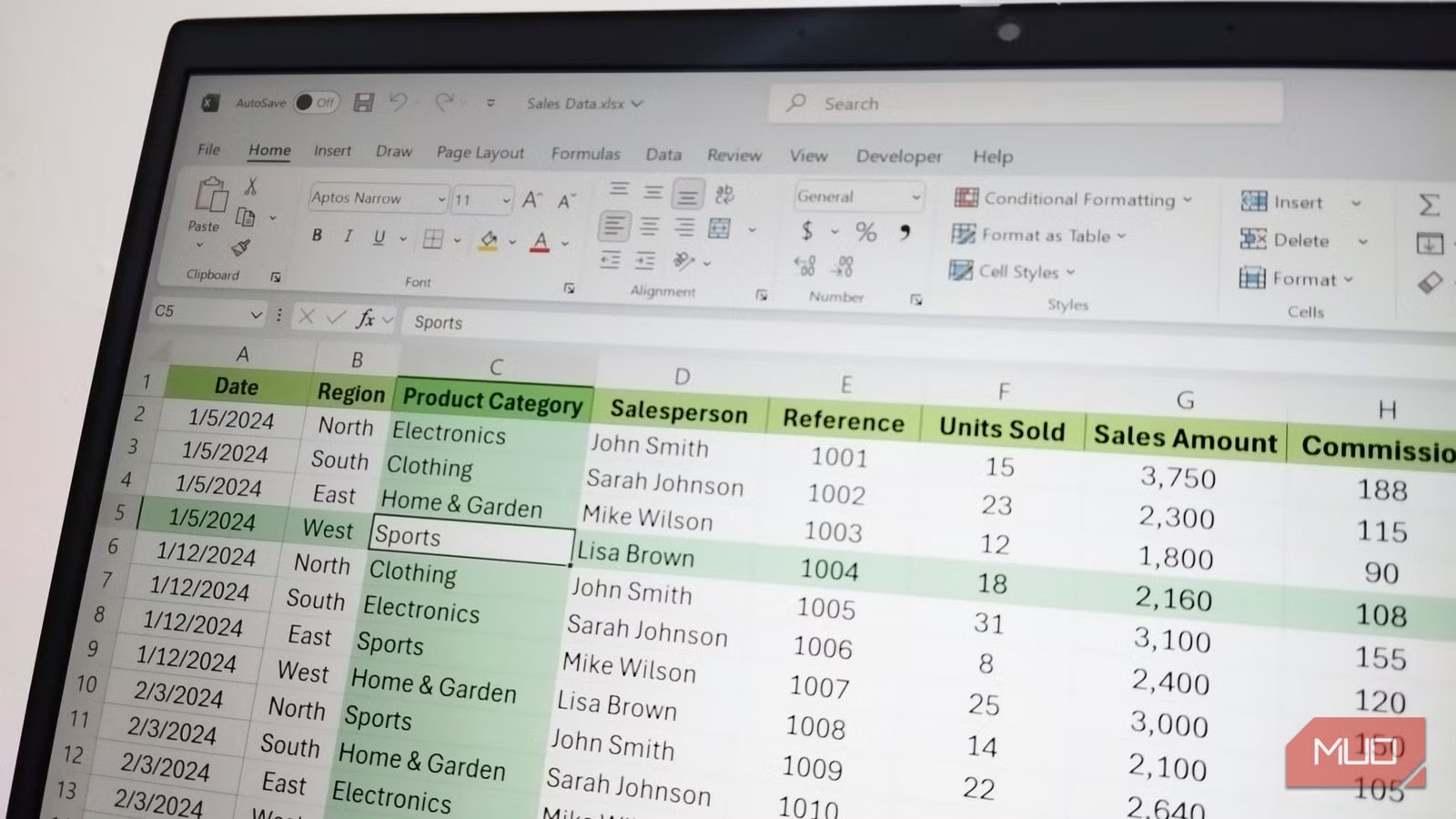
After working on an Excel sheet for a while, I often found myself asking how it all got so complicated. So many things used to go wrong, such as not finding what I needed, making Excel mistakes that broke formulas, and forgetting what certain complex calculations did. It was hard to get work done when it felt like the very spreadsheet I had built was fighting me. Something had to be done to ensure that future Excel sheets feel effortless.
The key to doing this was in adopting simple habits that became second nature over time. It took a lot of effort, but once they were ingrained in my workflow, they saved me a lot of time. The beauty is that they were so easy that I kicked myself for not learning them earlier. While there are several of them, I find these to be the most useful.
Master Excel shortcuts
You only need to know a handful
Shortcuts in every program are useful for one big reason — they save you extra clicks by just pressing two or three buttons on your keyboard. Microsoft has done its best to ensure that Excel’s menus are intuitive, but the time spent clicking through menus can add up, regardless. Excel has plenty of shortcuts, but you don’t need to memorize all of them. You can get by with a handful of them beyond the standard ones, like Ctrl + Z to undo, Ctrl + C to copy, and Ctrl + V to paste.
For instance, Ctrl + Shift + L to apply filters to a range, Alt + = automatically sums a selected range, and Ctrl + Space selects an entire column. Using shortcuts can save you hours in the long run. Here’s a table with the most common Excel shortcuts that I use:
Shortcut
What it does
Ctrl + Shift + L
Toggle filters on or off
Alt + =
AutoSum the selected range
Ctrl + Shift + $
Format cell as currency
F4 or Fn + F4 (on laptops)
Repeat the last action
Ctrl + Space
Select the entire column
Shift + Space
Select the entire row
Ctrl + Arrow keys
Move to the edge of the data region
A quick explanation can go a long way
To add a comment in Excel, you highlight the important cell(s), right-click them, and select New Comment. Comments are primarily used as a feedback tool, allowing you to have threaded conversations with others about certain aspects of the spreadsheet.
For instance, someone can mention you in a comment and highlight a broken formula in a cell. You can easily jump in, fix it, and ping them back to let them know it’s been fixed. Afterward, the comment can be resolved.
But one of my favorite uses is to add context to complex calculations that I think someone might not understand right away, or justify why I did something one way instead of the other. It is not just for them. I might forget what I did, so they also serve as a reminder for my future self. This is something programmers do constantly when writing code, and I feel it’s something that works even in Excel.
Never lose track of where you are in the spreadsheet
I have often found myself deep down a sheet, wondering what the figures in column C mean. I scroll back up, remind myself, only to scroll back down, and forget what column J is. It’s a common frustration that I wouldn’t have to deal with if I had taken three seconds to freeze the header row so it always shows, no matter where I am on the sheet.
Freezing a row or column is as easy as selecting it and clicking Freeze -> Freeze Panes -> Top Row or First Column in the Window group of the View tab. You will see a thicker line appear below the row or next to the column, signifying that it’s frozen. Now, when you scroll through the sheet, it will remain in view, reminding you of the data it represents. It can even help with data analysis by making trends or errors easier to spot, since the frozen headers will always provide context.
Use named ranges
It’s better than remembering cell ranges
It’s easy to tell what cells a range like B1:B100 is referencing in a formula, but it’s not easy to tell what data it is referencing. Is it sales, grades, dates, or something else? To take the guesswork out of it, I learned to use named ranges. These are descriptive or meaningful names assigned to a specific range or cell.
To create one, select the range or cell, type a descriptive label (e.g., Total_Sales or Total_Grades) in the Name Box (next to the formula bar), and hit Enter. When you enter that named range in a formula, Excel will know what you’re referencing and use the value in those cells instead.
So, instead of writing a formula like the one below:
=SUM(B1:B100)
You can write something like this after creating a named range:
=SUM(Sales_Q1)
Also, if you click the dropdown in the Name Box, you will see all your named ranges. Clicking on them will instantly highlight the specific range. So it’s good for easy navigation, not just for making formulas easier to read.
Make charts from tables instead of ranges
Account for expanding data
Before I learned to use tables, I used to build charts from regular ranges. This wasn’t smart because maintenance quickly became a headache. For instance, if I add an extra row or column after the range, the table would not automatically update. This meant I had to go into the Data tab of the chart and make manual adjustments, which is hardly efficient if I needed to update multiple charts.
The answer was to convert the range into a table, since tables expand automatically. Since charts are always in sync with their source, adding more data to the table will do the same for the chart — no manual adjustments are needed.
Related
4 reasons why you shouldn’t use Excel tables for everything
Just because Excel tables exist doesn’t mean your spreadsheet needs one.
Converting a range to a table is simply a matter of selecting the range and clicking Format as Table in the Styles group of the Home tab. Since I mentioned shortcuts earlier, you can also press Ctrl + T or Ctrl + L to create a table from a selected range.
Use data validation for inputs
Preventing mistakes makes the sheet more reliable
Entering the wrong data type is a sure way to introduce errors into your Excel sheet. For instance, if someone enters a number where a formula expects a month (e.g., February or December), it can easily throw off a beautifully written IF statement, leading to a wrong analysis. In cases like this, it’s wise to restrict the types of data that can be entered using Excel’s data validation.
Related
8 Excel tricks that I wish I knew when I had just started using it
Excel isn’t hard, just learn the right tricks early enough.
To solve the problem described above, for example, select a cell, then click Data Validation in the Data Tools group on the Data tab. In the pop-up, select List under Allow and enter the months (can be a comma-separated list or range) under Source. Click OK, and the cell becomes a dropdown that you can use to select months, reducing the chance of errors.
This is just one example of using data validation. Another thing I like to use it for is limiting the numbers one can enter in a cell. For instance, to limit numbers between 1 and 100, you can select Whole Number under Allow, select Between under Data, enter 1 under Minimum, and enter 100 under Maximum.
Use PivotTables for fast analysis
Don’t bother writing complex formulas
I used to avoid PivotTables like the plague, and most people do to this day. There is one glaring issue with that strategy — they are usually faster and easier than writing complex formulas. With just a few clicks, PivotTables allow you to, for instance, summarize sales by region, count the number of entries, and calculate averages.
To create a PivotTable that shows total sales by region, select your data and click Insert -> PivotTable in the Tables group of the Insert tab. Click OK in the pop-up to create a new sheet where you can build your PivotTable. In the PivotTable editor panel on the right, drag the Region column into the Columns field and the Sales column into the Values field. And just like that, you have a table that neatly summarizes what you need — no messy, breakable formula.
Looking at the PivotTable builder makes it clear that there is room for experimentation here. For instance, you can try to summarize by quarter or by salesperson. You can even change the aggregation of the values to averages if you don’t want a summation of everything.
Good Excel habits go a long way
Doing these small things has given me confidence in my Excel sheet. I can send them to others knowing that they will understand them and won’t mess them up easily. It was not easy building the habits. However, it was worth it since I now build sheets that I know will be effortless to use tomorrow, six months from now, or even two years later.
