

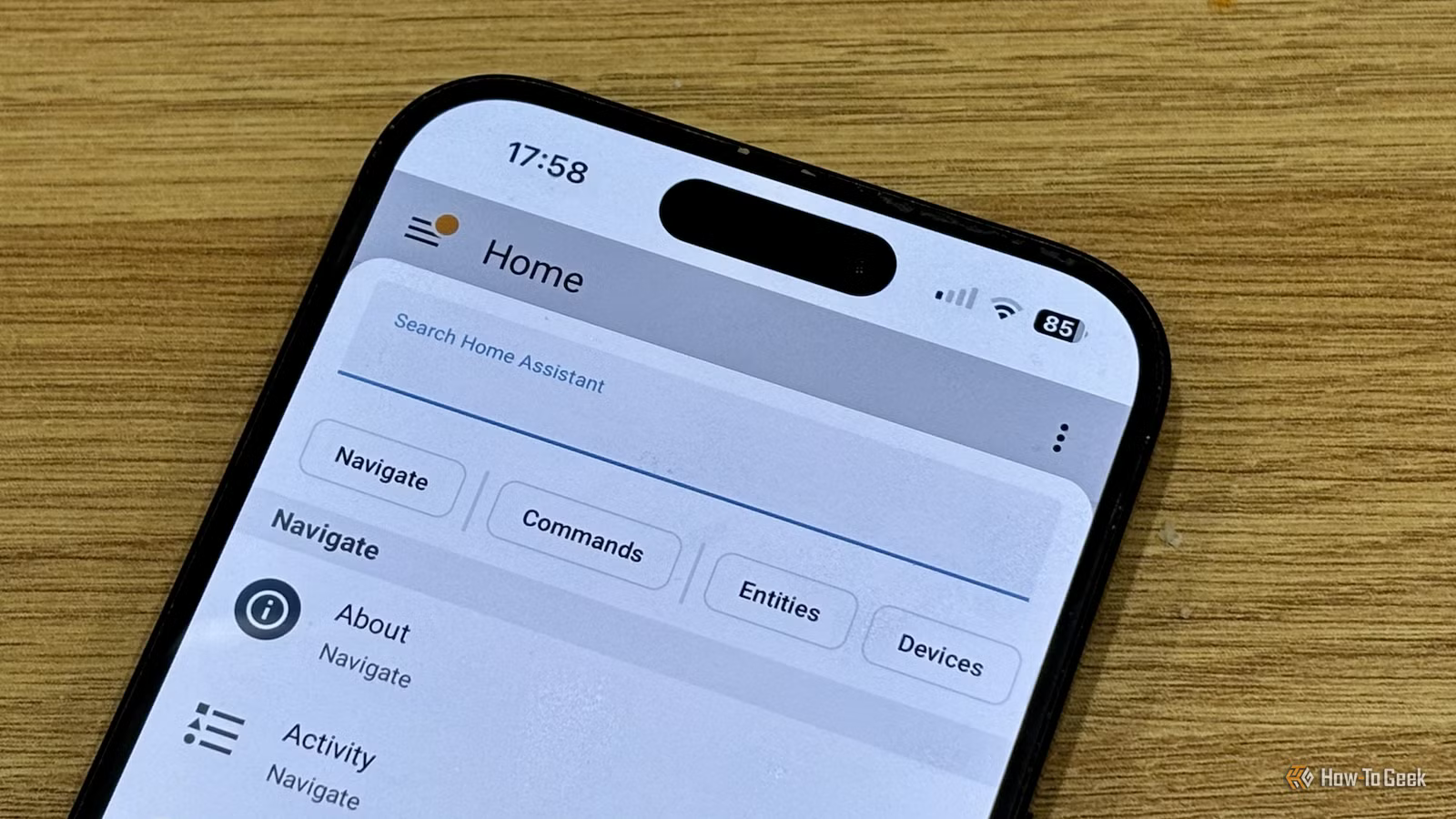
In the Home Assistant 2026.2 update, a new Quick search feature was introduced. The tool has a dedicated keyboard shortcut, but this isn’t really much use on mobile. Thankfully, there is a quick way to launch the tool in the mobile app.
What is Quick search in Home Assistant?
Navigate faster with your keyboard
When you add a device to Home Assistant, multiple entities are usually created. The more devices you add, the more entities you end up with. It soon reaches a point where finding the exact entity you want becomes a challenge.
The Quick search tool added in Home Assistant 2026.2 aims to make it quick and easy not only to find entities in Home Assistant, but also devices, areas, and commands, as well as helping you quickly navigate to specific settings screens.
The Quick search feature has a dedicated keyboard shortcut, Ctrl+K (or Cmd+K) on Mac. You can use this shortcut almost anywhere within Home Assistant to open the Quick search tool and start searching.
There are also dedicated hotkeys for searching for entities (E), devices (D), and commands (C), as well as a shortcut to open Assist (A). Unfortunately, none of these shortcuts is much use in the mobile app as you can’t easily enter a keyboard shortcut when your phone’s keyboard isn’t displayed.
Some browsers already use Ctrl+K/Cmd+K to access search, which can conflict with the Home Assistant shortcut. You can use the E, D, or C hotkeys to open Quick Search and then disable the filters if necessary.
Enable a gesture to open Quick search
Use the mobile equivalent of a keyboard shortcut
The good news is that the Quick search tool doesn’t have to be useful only when you’re using a desktop or laptop. Instead of a keyboard shortcut, you can use a different method to quickly access the Quick search tool on mobile.
The companion app gives the option to add certain commands to gestures. For example, shaking my iPhone will open the Debug screen. In the companion app, you now have the option to assign Quick search to a gesture, allowing you to open the tool by swiping the screen or shaking the phone.
To set gestures in the Home Assistant companion app, open the app and select “Settings” from the left-hand menu. Scroll down, select “Companion app,” and tap “Gestures.” Choose a gesture to use to open Quick search; I opted for “Swipe up using three fingers.” Select “Quick search” from the list of actions. The Quick search tool will now open whenever you perform the gesture in the app, and the phone keyboard should automatically appear so that you can start typing immediately.
Add further gestures for faster searching
Include gestures to find entities or devices
Just as you can focus your search results on a desktop or laptop using the E, D, and C keys, you can do the same with gestures. You can set up a different gesture for searching solely for entities, solely for devices, or solely for commands. This makes finding what you need even faster as you have fewer results to sift through.
Repeat the steps in the section above to access the “Gestures” settings. To only search for entities, select “Search entities” as your action. To limit results to devices, select “Search devices,” and to only include commands in the results, select “Search commands.” You can also add a gesture for “Open Assist” if you want.
Once you’ve set up your gestures, it can take a little while to get used to them. If you’ve set up gestures for devices, entities, and commands, as well as the main Quick search tool, you may initially forget which gesture is which. However, once you’ve used them for a while, they quickly become second nature and make navigating Home Assistant on your phone much faster.
A useful tip for using Quick search
Make Quick search quicker
Opening Quick search is only the first step. You then need to enter the text that you want the tool to search for. Entering the right text can make getting to the result you need even faster.
When you start typing, Quick search will look for a match for the text that you type. However, it won’t just look at the start of result names; it will look for a match within result names, too. For example, typing “set” will bring up “Settings” as the top result, but so will typing “tti”.
You can use this to figure out the shortest combinations of characters that will bring the result you’re looking for to the top of the list, at which point you can tap the Return/Enter key to go to your result.
For example, I’ve found that, for my instance at least, the quickest way to open Developer tools using Quick search is to use my gesture and then type “ol”. This places Developer tools as the top result, and I can open it by tapping Return/Enter, which makes it far quicker to open now that it’s been removed from the left-hand menu.
If I type “de” instead, I get “Devices” as the top result, and it stays there until I type “deve”, but “ol” brings up the right result with just two letters. Your mileage may vary depending on the names of other devices and entities you have.
At first, Quick search feels like a tool that is useful on a desktop but of little use on mobile. However, by assigning gestures, it can become a quick way to navigate on mobile, once you’ve gained the muscle memory.
