

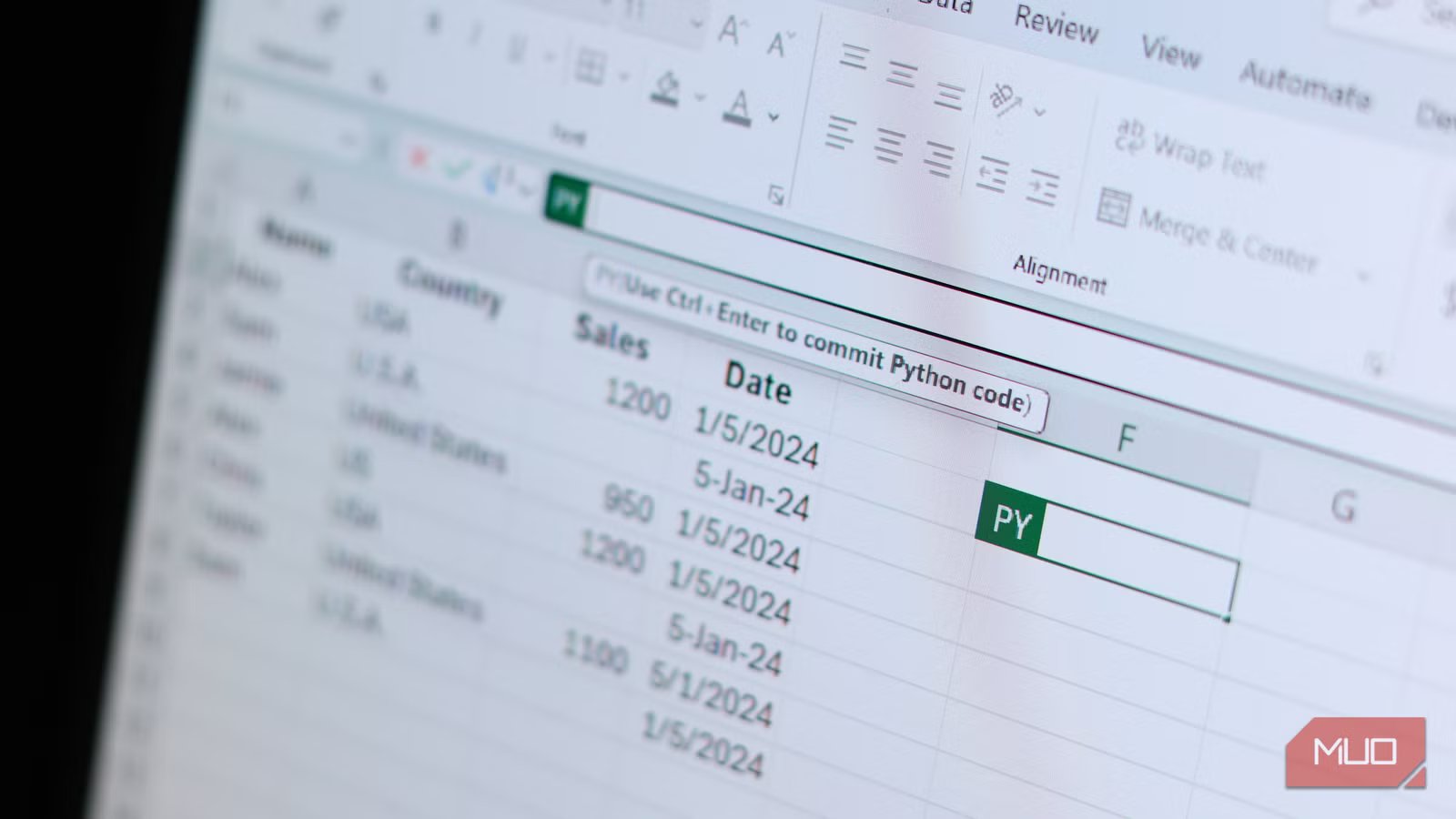
If you heard Python was coming to Excel and thought it was another thing you needed to learn to code, I’ve got good news. Yes, Python in Excel is a powerful way of cleaning up and organizing your data, but you don’t need to be a programmer to use it at all.
Just like using basic VBA scripting in Excel makes it much better, knowing a few Python commands and how to use them can elevate your Excel experience. I’ve spent years watching Excel users struggle with data that looks like it was entered by five different people with five different ideas about formatting. And honestly, Python in Excel is one of the most beginner-friendly solutions for tackling these headaches.
Getting started is easier than you think
Microsoft hid the hardest parts and left you with the useful ones
Screenshot provided by Yasir. | No attribution required.
If you have a Microsoft 365 subscription (Business or Enterprise), you already have access to Python in Excel. No installation, no setup, no downloading mysterious packages from the internet.
To activate it, just click the Formulas tab and select Insert Python. Even simpler? Type =PY into any cell and press Tab. That’s it. You’re now in Python mode. There’s no separate window, no black terminal screen, no intimidating command prompts. It’s just Excel, but with Python superpowers.
Although there’s a range of Python functions and syntax in Excel, you don’t need to memorize any Python code. Microsoft has integrated Copilot with Python in Excel. You can literally type any tasks you want in plain English, like “remove duplicates from this list” or “fill missing sales values with the average,” and Copilot writes the Python code for you. This is a great way of learning Python in Excel, as you can see the code and modify it as needed.
Using Python in Excel
Python handles messy data that would take dozens of formulas
When you select your data in Excel and use the xl() function, Python creates something called a DataFrame. Think of it as Excel creating a super-smart table that knows how to clean itself.
Let’s say you have a customer list with 500 rows, and you suspect there are duplicates. In traditional Excel, you’d have to use the Remove Duplicates option in the Data menu, select columns, and hope for the best.
With Python in Excel, you select your data range and type two lines:
df = xl(“A1:D500”, headers=True)
df.drop_duplicates()
Screenshot provided by Yasir. | No attribution required.
That’s it. The first line tells Python to assign the selected data to a variable called df. The second line removes all duplicates automatically. What makes this approach better isn’t the fact that it works with just two lines of code—it’s that you can see exactly what’s happening. No hidden checkboxes or mysterious settings to deal with.
The same concept applies if you’re dealing with missing data. Empty cells are the bane of every analyst’s existence. Sometimes you want to fill them with zeros, sometimes with averages, and sometimes you want to delete empty rows entirely.
Let’s say you want to fill missing values in a spreadsheet’s sales column with the median value. Just run the following line:
df[‘Sales’].fillna(df[‘Sales’].median(), inplace=True)
Screenshot provided by Yasir. | No attribution required.
This single line finds all the empty cells in your sales column and fills them with the median value from that same column. Try that with standard Excel formulas and you’ll end up with a mess of helper columns before you know it.
Another common example of Python’s helpfulness in Excel is text cleanup. Ever received a dataset where someone typed “USA”, “U.S.A”, “United States”, and “US” to mean the same thing? This inconsistency can break pivot tables, ruins charts, and makes analysis nearly impossible.
Python’s replace() function handles this elegantly:
df[‘Country’].replace([‘U.S.A.’, ‘United States’, ‘US’], ‘USA’, inplace=True)
Screenshot provided by Yasir | No attribution required.
This finds every variation and standardizes them to “USA”. You can handle dozens of replacements in seconds, something that would take multiple Find & Replace operations in regular Excel.
You can do this with dates as well. If you’ve got an Excel spreadsheet with dates entered in every imaginable format, you can standardize everything in seconds with a single line of code:
df[‘Date’] = pd.to_datetime(df[‘Date’])
Screenshot provided by Yasir. No attribution required.
Python’s pandas library, which comes built-in with Python in Excel, automatically recognizes most date formats and converts them to a standard format. Once again, it’d take multiple Find & Replace operations and a ton of time to fix this otherwise.
Another function I love in Python for Excel is describe(). It gives you an instant statistical summary of your entire dataset.
df.describe()
Screenshot provided by Yasir | No attribution required.
This single command returns the count, mean, standard deviation, minimum, maximum, and quartiles for every numeric column in your data. It’s like having Excel’s Analysis ToolPak condensed into one command, making it incredibly easy to quickly spot outliers in your data.
Once you try it, there’s no going back
Python in Excel changes how you think about cleaning spreadsheets
Data cleaning with Python in Excel isn’t about becoming a programmer. It’s about having more powerful tools to handle the messy reality of real-world data. The aforementioned Python functions solve a majority of common data cleaning problems with simple, readable commands.
Related
The Excel functions I use most (and why they’re so useful)
I use these four excel functions every time I have to handle messy spreadsheets.
You already know Excel. Python in Excel just gives you a more direct way to tell your spreadsheet what you want—without clicking through twelve different menus or creating elaborate formula chains that break the moment someone adds a new row.
Start small, and before you know it, you’ll be handling data cleaning tasks in seconds that used to take hours. And you still won’t be a coder, just someone who knows how to use the right tool for the job.
